Keypo Migration Guide
Everything you need to know about migrating Keypo to new devices.
Need help with your migration? Schedule a call with the Keypo team and we'll walk you through it.
Understanding Keypo's Local-First Architecture
Keypo splits your seed phrase into 3 shares using Shamir's Secret Sharing. Any 2 shares can recover your seed phrase.
Each share is stored in a different security domain:
- Share 1:Encrypted with your Mac's Secure Enclave, never synced to iCloud
- Share 2:Encrypted with your YubiKey, synced via iCloud Keychain
- Share 3:Encrypted with your iPhone's Secure Enclave, never synced to iCloud
However, Shamir Secret Sharing is static, which means that if you want to migrate to a new device (whether new Macbook, new iPhone or new Yubikey), you need to re-upload each seed phrase to create new shares.
What syncs to iCloud Keychain:
- • Seed phrase metadata (seed phrase name & share locations)
- • Share 2 (encrypted with your Yubikey). Requires physical access to your Yubikey to use.
What stays local (never syncs):
- • Share 1 (encrypted with your Macbook's Secure Enclave). Requires physical access +
 to use.
 - • Share 3 (encrypted with your iPhone's Secure Enclave). Requires physical access +
 to use.
Migration Scenarios
Scenario A: You lost your Macbook
If you lost your Macbook, no one with access to it can recover your seed phrases due to two layers of protection:
- • The Keypo app on your Macbook requires YOUR touchID to log in. If someone else has access to your Macbook and enrolls their own touchID, the app will not let them log in.
- • Only share 1 for a given seed phrase is locally on your Macbook. You need at least 2 other shares to recover your seed phrase.
Steps to migrate:
- 1Install Keypo on your new Macbook.
- 2You'll be prompted to restore from iCloud.
- 3Your seed phrase metadata and Yubikey shares will load from iCloud.
- 4Using your Yubikey and iPhone, recover your seed phrases.
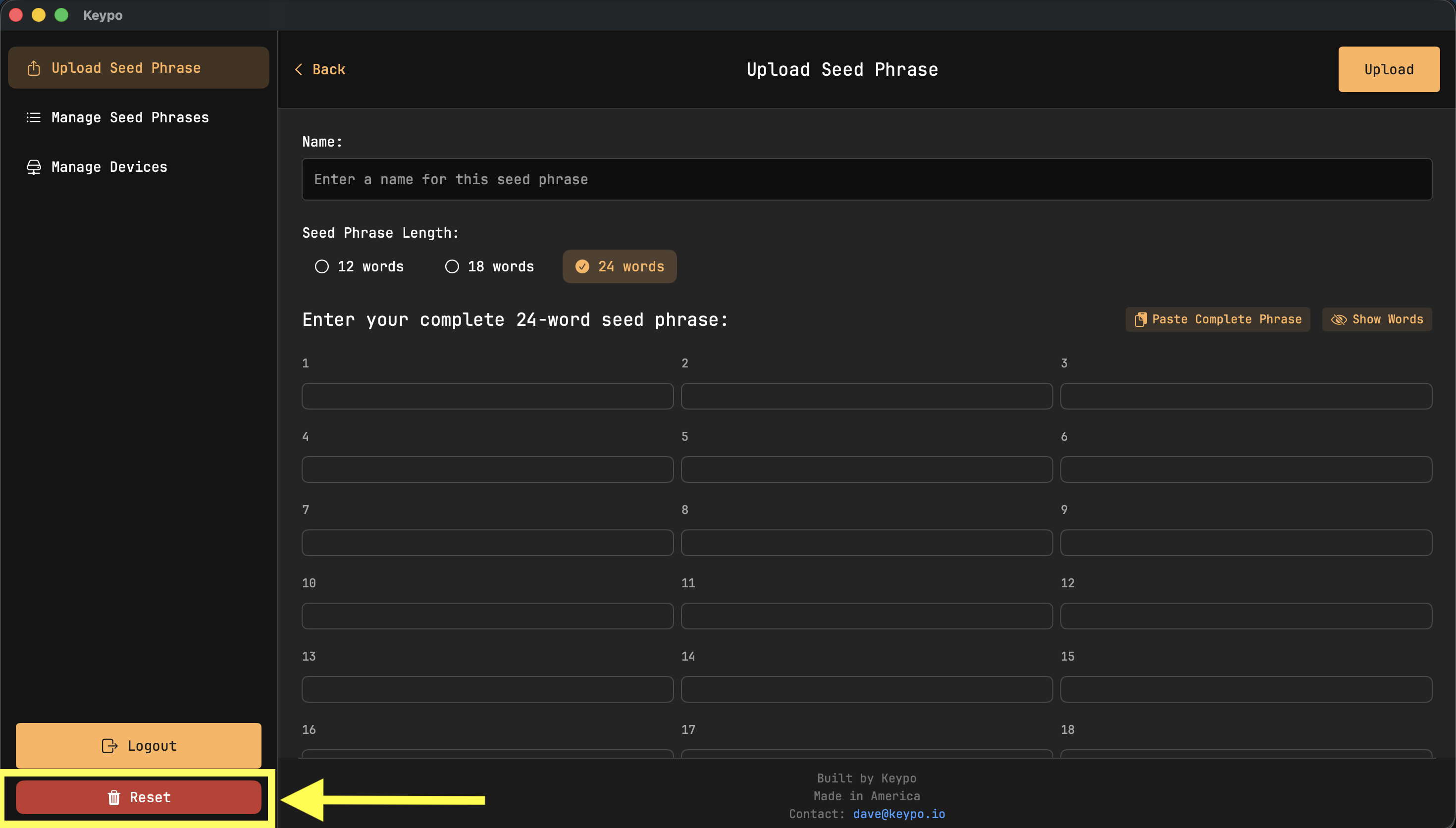
- 5Reset Keypo on your new Macbook. This will delete the metadata for the seed phrases on your old Macbook. NOTE: make sure you have your recovered seed phrases before doing this. Reset is irreversible.
- 6Either delete each seed phrase share on your iPhone, or delete the Keypo app on your iPhone and reinstall it.
- 7Create a new user on your new Macbook.
- 8Re-upload each seed phrase.

Scenario B: You got a new Macbook
Ideally you will follow the steps below to migrate to your new Macbook. If you forgot to do this before giving your old Macbook away, follow the steps in scenario A.
Steps to migrate:
- 1On your old Macbook, recover your seed phrases.
- 2On your iPhone, either delete each seed phrase share, or delete the Keypo app and reinstall it.
- 3On your old Macbook, reset Keypo and delete the app. NOTE: make sure you have your recovered seed phrases before doing this. Reset is irreversible.
- 4On your new Macbook, install Keypo and re-upload each seed phrase.
Scenario C: You got a new iPhone
The Keypo iPhone app is not synced to iCloud, so transferring your shares requires re-uploading each seed phrase through the Keypo app on your Macbook.
Steps to migrate:
- 1On your macbook, recover your seed phrases.
- 2On your old iPhone, delete the Keypo app. This will permanently delete the shares backed up to your iPhone.
- 3On your new iPhone, install Keypo.
- 4On your macbook, re-upload each seed phrase. This will create a new Share 3 on your new iPhone.
Scenario D: You got a new Yubikey
Steps to migrate:
- 1On your macbook, recover your seed phrases.
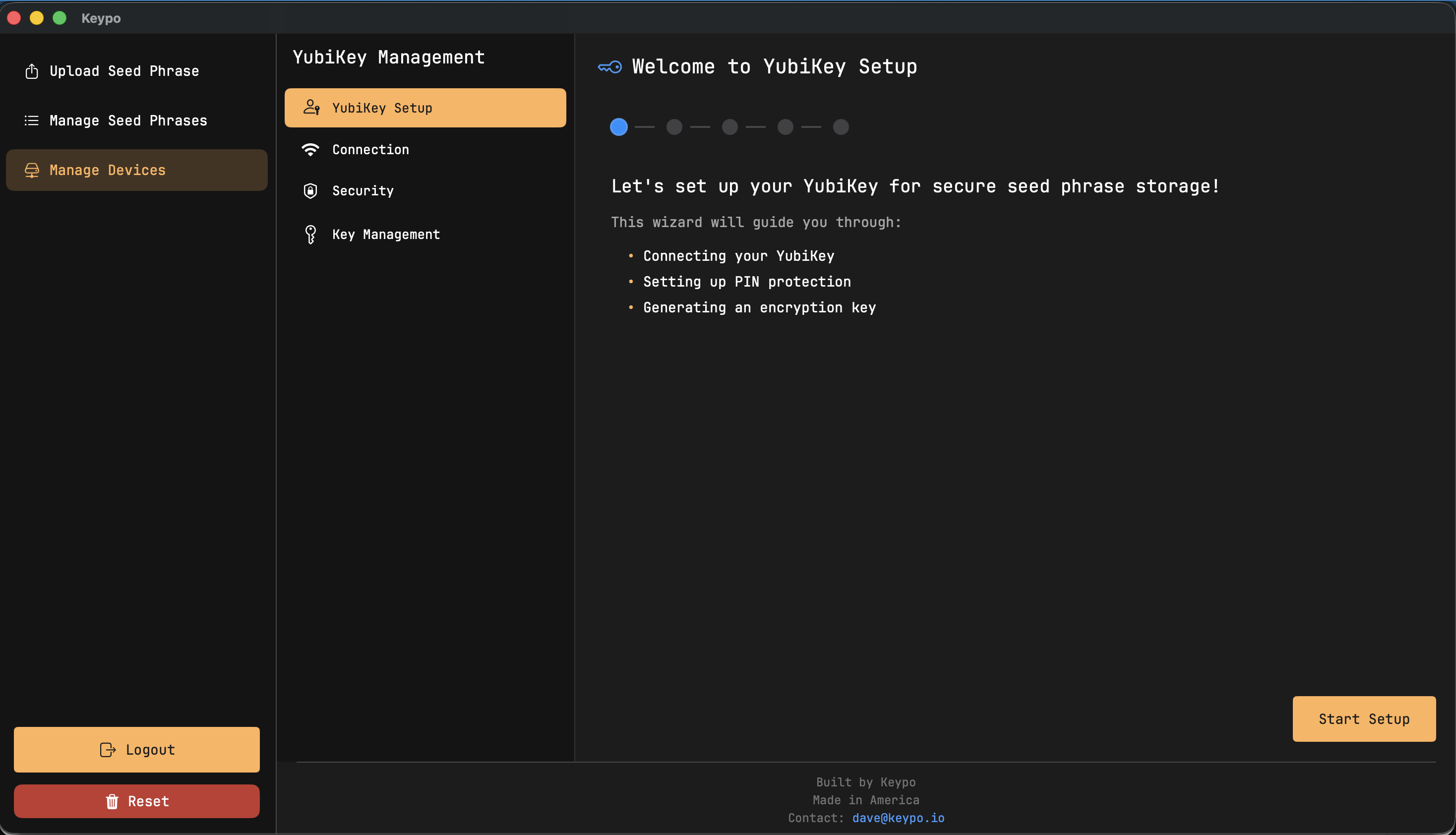
- 2Set up your new Yubikey in the Keypo app on your Macbook.
- 3On your Macbook and iPhone, delete your seed phrases.
- 4On your Macbook, re-upload each seed phrase. This will create new shares backed up to your Macbook, iPhone and Yubikey.